
This how-to article will show you how to enable email forwarding from your Office365 email account using the Outlook Web Access (OWA) webmail client.
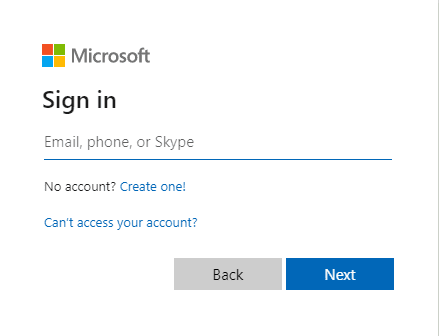
- First you’ll need to login to your OWA portal by following this link in your favorite browser: https://portal.office.com
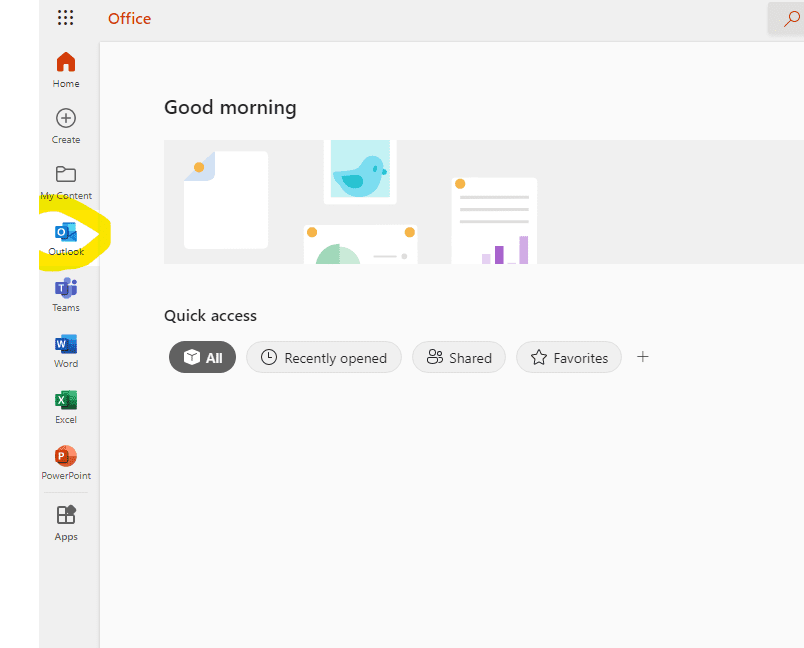
- Once logged in, click on the Outlook Icon to access the Outlook Web Access (OWA) portal.
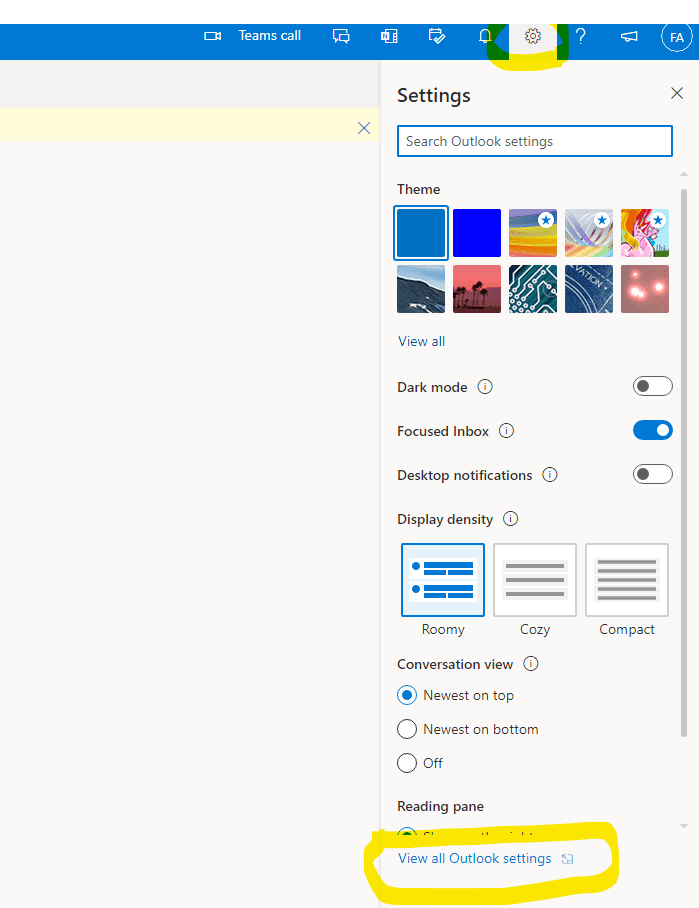
- Now click on the settings gear in the upper right hand corner and choose View All Outlook settings.
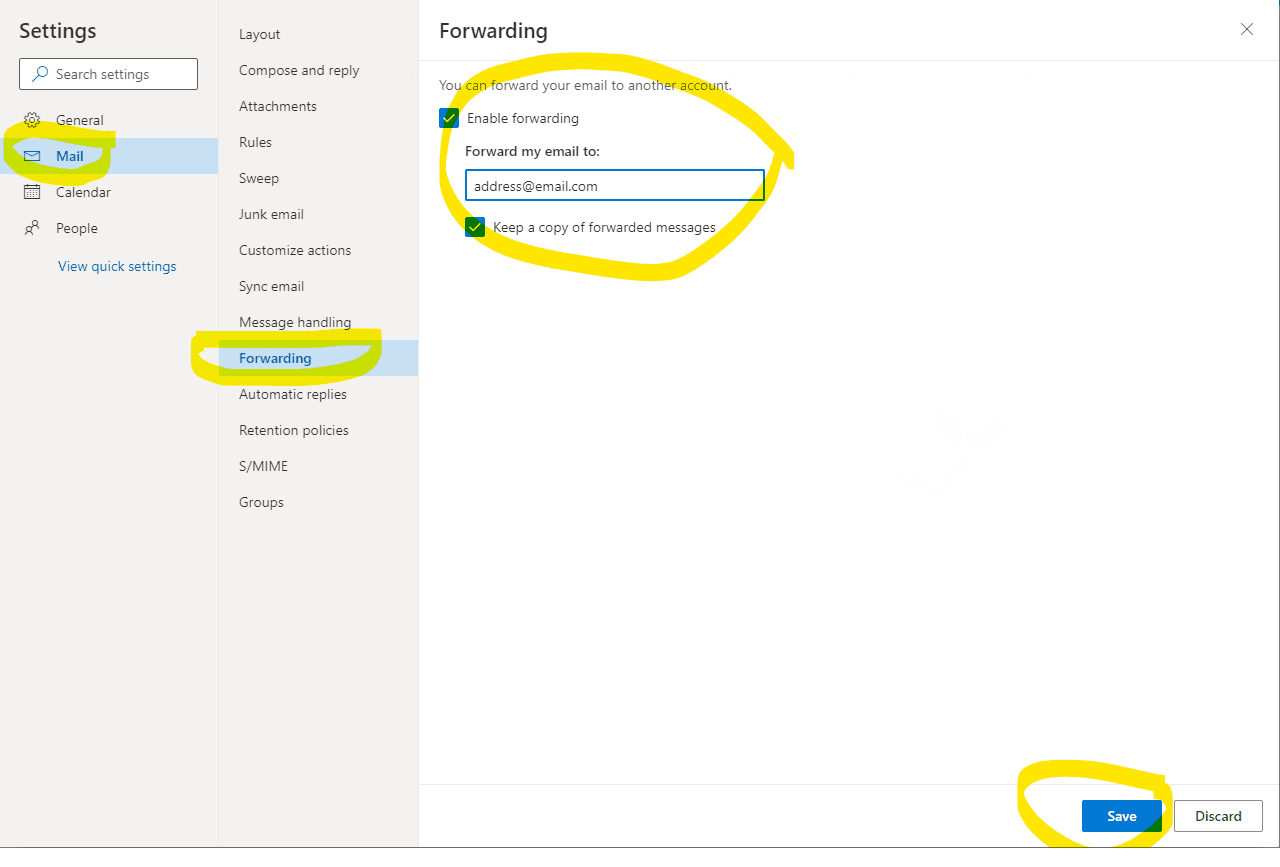
- Once in settings, choose Mail, then Forwarding. Click Enable forwarding and type in the email address you would like to forward email to. We recommend also checking Keep a copy of forwarded messages in order to keep a backup of the received emails. Click Save at the bottom of this screen then close the menu by clicking the x in the top right corner.
That is it. Email forwarding is now enabled.
Need hands-on help with this? See our Managed IT Services →